
PS1 BIOS Download & Setup Guide for ePSXe, DuckStation and RetroArch
Want to play your favorite PS1 games again? This guide will help you set up the PS1 BIOS on Android, iOS, or Windows without confusion. Whether this is your first time using an emulator or you’ve done it before, we’ll show you the setup step by step. Here’s the simplest way to do it, offering clear steps to enjoy your favorite PS1 titles.
Below, you’ll find clear setup instructions and explanations for the most commonly used PS1 BIOS versions. From understanding BIOS types to troubleshooting installation, this page equips you with everything needed to start gaming. If you also play PS2 games, explore our dedicated PS2 BIOS section for more retro gaming options.
What is the PS1 BIOS?
The PS1 BIOS is the system software that originally came built into every PlayStation 1 console. It acts like the console’s operating system, managing startup, reading game discs, handling memory cards, and checking game regions. When you turn on a PS1, the BIOS runs first to make sure everything functions before loading your game.
In emulation, the PS1 enables software like ePSXe, DuckStation, and RetroArch to mimic the real console’s behavior. Without it, emulators may fail to launch games, suffer crashes, or lose features like sound and save data. Without it, many games simply won’t start or won’t run properly.
Available PS1 BIOS Files by Region – USA, PAL, NTSC, NTSC-J
Most emulators expect a .bin BIOS file, and some are picky about the exact filename.
SCPH1001.BIN –
(USA)
SCPH7502.BIN –
(PAL)
SCPH5500.BIN – (Japan)
SCPH7003.BIN – (Worldwide)
Get the Ultimate PS1 BIOS Collection (All Versions Master File).
Note: All files are safe and free from viruses.
Other BIOS file versions (by model / region)
|
SCPH-1000 [NTSC-J] |
|
SCPH-1001 [NTSC-U/C] |
|
SCPH-1002 [PAL] |
|
SCPH-3000 [NTSC-J] |
|
SCPH-3500 [NTSC-J] |
|
SCPH-5501 [NTSC-U/C] |
|
SCPH-5500 [NTSC-J] |
|
SCPH-5502 [PAL] |
|
SCPH-5552 [PAL] |
|
SCPH-7000 [NTSC-J] |
|
SCPH-7001 [NTSC-U/C] |
|
SCPH-7002 [PAL] |
|
SCPH-7003 [NTSC-J] |
|
SCPH-7501 [NTSC] |
|
SCPH-7502 [PAL] |
|
SCPH-9002 [PAL] |
|
SCPH-100 [NTSC-J] |
|
SCPH-101 [NTSC-U/C] |
|
SCPH-102A [PAL] |
|
SCPH-102B [PAL] |
|
SCPH-102C |
Why Is a PS1 BIOS Needed for Emulation?
A PS1 BIOS is required because it allows the emulator to behave like a real PlayStation 1 console. This firmware file handles critical tasks like starting the system, reading game discs, and managing memory cards. Without it, emulators like ePSXe, Pcsx2, DuckStation, or RetroArch may fail to run games or produce errors, disrupting your retro gaming experience.
While some emulators use High-Level Emulation (HLE) to bypass the BIOS, this can skip key functions, leading to glitches or incompatible games. Using the correct BIOS reduces crashes, improves compatibility, and makes games run closer to the original console. Here’s why it is required:
Authentic Console Behavior
The BIOS makes emulators act like a real PS1, handling game loading and system functions accurately.
Improved Game Compatibility
Many games need BIOS instructions to run properly, preventing crashes or loading issues.
Accurate
Emulation
It makes sure precise timing and hardware simulation, reducing glitches in retro gaming.
Support for Save Features
The BIOS enables memory card functionality, ensuring in-game saves and save states work correctly.
Audio and Video Handling
The BIOS syncs sound and graphics, especially for cutscenes, avoiding playback issues.
Game
Verification
Some games require the BIOS to authenticate and launch, ensuring compatibility.
Difference Between PS1 and PS2 BIOS
PS1 and PS2 BIOS files are distinct, each designed for its specific Sony console. Using the wrong BIOS can cause crashes, compatibility issues, or missing features, making it essential to choose correctly for your retro gaming setup.
This section compares the PS1 and PS2 BIOS files, detailing their unique roles in emulation. Using the correct BIOS for each console prevents errors and improves compatibility.
PS1 Bios
The PlayStation 1 (PS1), launched in 1994, introduced CD-based gaming with a 32-bit architecture, delivering classics like Final Fantasy VII and Resident Evil. Its BIOS is the firmware that powers the console’s core functions, enabling emulators to replicate its behavior. This file is critical for authentic retro gaming experiences.
PS2 Bios
The PlayStation 2 (PS2), released in 2000, brought 128-bit architecture, DVD playback, and a vast game library with partial PS1 backward compatibility. Its BIOS handles advanced system tasks, allowing emulators to run complex PS2 games. This file make sure robust performance for modern emulation setups.
Types of BIOS PS1 by Region
Choosing the correct BIOS version helps your games run without region or display issues. Each BIOS corresponds to a specific region and console version, affecting gameplay accuracy, video settings, and system functions in emulators like ePSXe, DuckStation, and RetroArch.
This section outlines the main PS1 types by region, detailing their roles and compatibility. Match the BIOS region to your game region to avoid errors.
SCPH1001.BIN (USA version 2.2AEJ)
SCPH1001.BIN powers North American PlayStation 1 consoles, supporting NTSC-U/C games. It make sure accurate system startup, disc reading, and memory card functionality for U.S. and Canadian titles. This BIOS works seamlessly with emulators like ePSXe and DuckStation, delivering reliable performance.
SCPH5500.bin (Japan version 3.0J)
SCPH5500.BIN is tailored for Japanese PS1 consoles, optimized for NTSC-J games like JRPGs. It handles region-specific functions, ensuring smooth gameplay and correct audio-visual output. This BIOS is ideal for emulating Japan-exclusive titles on RetroArch or PCSX-Reloaded.
SCPH7003.bin (Europe, version 3.0AEJ)
SCPH7003.bin supports European PAL-region games, which use different frame rates and resolutions than NTSC titles. It manages system boot and PAL-specific settings for accurate emulation. Use this BIOS in emulators to run European PS1 classics without display issues.
SCPH7502.BIN (Europe/PAL)
SCPH7502.BIN is another PAL-region BIOS for European PS1 consoles, ensuring compatibility with PAL games. It maintains proper video and audio synchronization for titles released in Europe. This BIOS is a solid choice for emulating PAL games on DuckStation or ePSXe.
Additional PS1 Versions
Key Features of PS1 BIOS for Emulation
The PS1 is the core firmware that enables emulators to replicate the original PlayStation 1’s behavior, delivering an authentic retro gaming experience. It powers essential functions like startup sequences, game loading, and save management, ensuring compatibility and stability in emulators like ePSXe, DuckStation, and RetroArch. Here are the key features that make the PS1 vital for emulation:
Where to Download PS1 BIOS Legally?
For safe and legal PS1 emulation, always choose trusted sources for BIOS files. Pcsx2bios.org offers verified, malware-free files for NTSC-U, NTSC-J, and PAL regions, ensuring compatibility with emulators like ePSXe, DuckStation, and RetroArch.
Untrusted sources can harm your device and disrupt your emulation setup. Avoid downloading BIOS files from random websites, as they may contain modified or unsafe files. Downloading from unsafe sites may cause:
Download PS1 for Android & PC
Get the BIOS PS1 for Android and PC to run emulators like ePSXe, DuckStation, and RetroArch smoothly. Choose the right BIOS version for your game region using provided compatibility notes.
Make sure the BIOS version you use matches your emulator’s requirements and your game region. Confirm your emulator’s requirements to make sure proper setup and avoid errors.
Supported PS1 Emulators for Android, iOS, and Windows
These are the most popular PS1 emulators currently used on Windows, Android, and iOS.
Android
iOS
Windows
Explore the best PS2 Emulator to use in 2026: https://pcsx2bios.org/which-ps1-bios-is-better/
How to Setup & Install PS1 on Emulators
(Step-by-Step Guide)
Common Preparations for Installing PS1 BIOS
Step 1: Get the correct PS1 BIOS file (match your region)
Make sure your BIOS file is in .bin format (example: SCPH1001.bin) and saved somewhere you can easily find. Move it to your PC or phone using a USB cable, SD card, or cloud storage, then keep it ready for the emulator setup steps below.
Step 2: Verify BIOS Checksum (Optional but Recommended)
Optional (but helpful): If your BIOS isn’t being detected or games crash, re-download the file and make sure it’s a clean .bin BIOS (not a zip/rar). Most problems come from incomplete or corrupted files.
Step 3: Create a Dedicated Folder
On PC, store the BIOS in a folder like C:\Emulators\BIOS\PS1. On Android, use Internal Storage/Emulators/PS1/BIOS/. For iOS, place it in a folder accessible via the Files app (e.g., On My iPhone/Emulators/PS1/BIOS/).
Installing PS1 on ePSXe (Android)
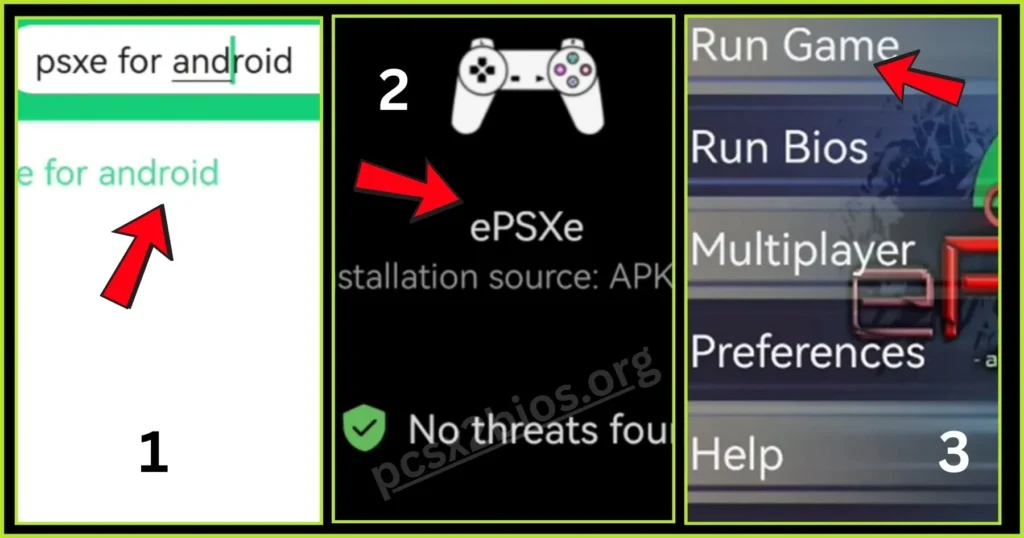
- Download the BIOS file you need (example: SCPH1001.bin) and keep it ready on your phone before you start setup.
- Extract the .bin file (e.g., SCPH1001.bin) using ZArchiver to Internal Storage/Emulators/PS1/BIOS/.
- Install ePSXe from the Google Play Store, open it, and go to Preferences > BIOS File to select the .bin file.
- Load a PS1 game via Run Games; the emulator will scan for ROMs and boot with the PlayStation logo.
Installing PS1 on ePSXe (PC)
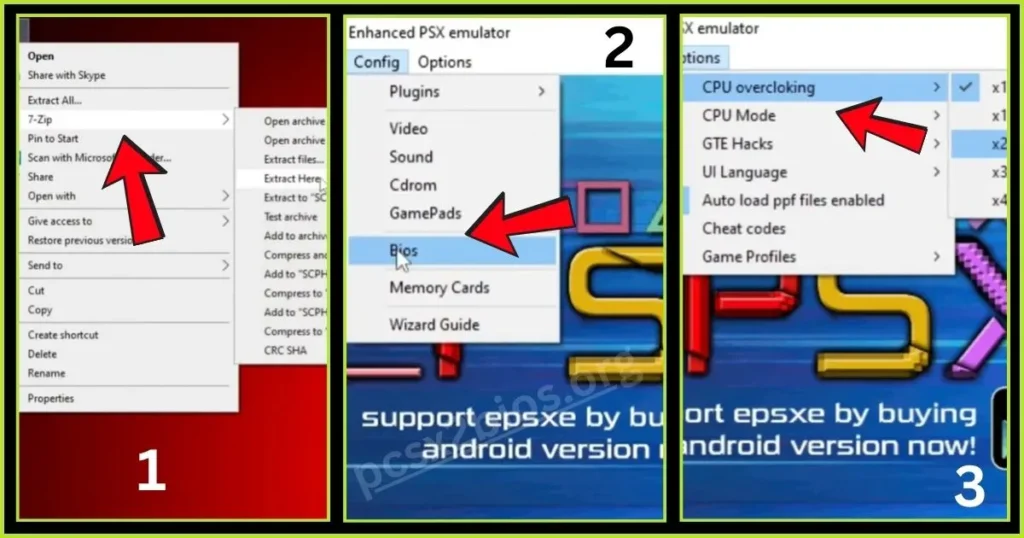
- Download the BIOS file and save it to C:\Emulators\BIOS\PS1.
- Install ePSXe from its official website and launch the emulator.
- Go to Config > BIOS, browse to the BIOS folder, select the .bin file, and click OK.
- Load a game via File > Run ISO and confirm the PlayStation startup sequence.
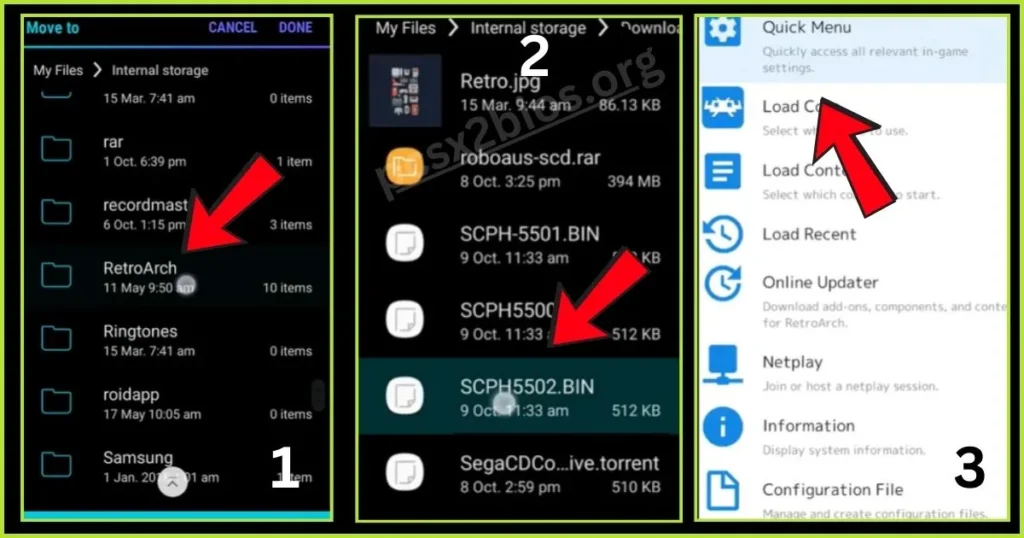
Installing PS1 on RetroArch (Android/IOS)
- Install RetroArch from the Google Play Store (Android) or AltStore/Cydia (iOS).
- Transfer the BIOS file to Internal Storage/Emulators/PS1/BIOS/ (Android) or On My iPhone/Emulators/PS1/BIOS/ (iOS).
- Open RetroArch, go to Settings > Directory > System/BIOS, and set the BIOS folder path.
- Load the Beetle PSX HW core via Load Core, then select a PS1 game from Load Content to verify.
Installing PS1 on RetroArch (PC)
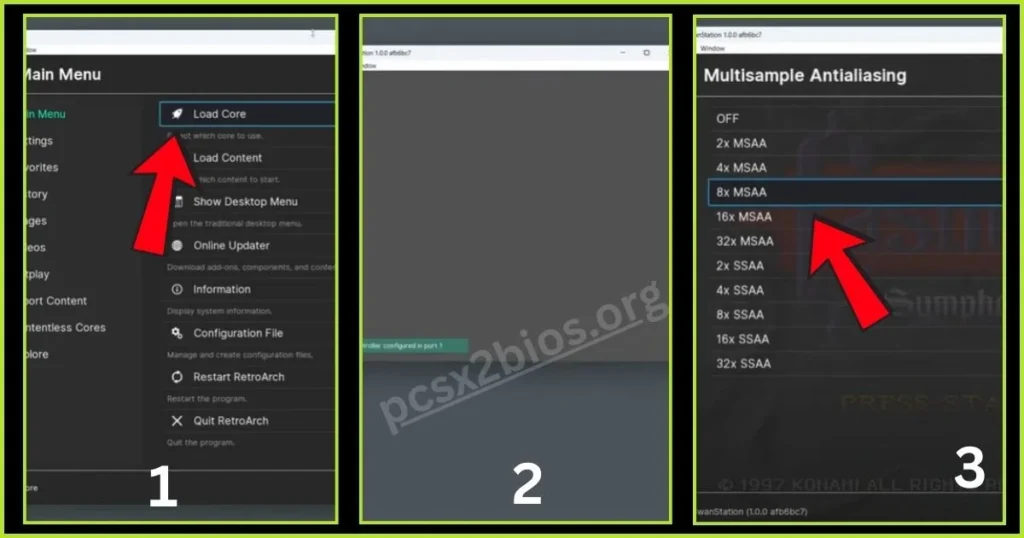
- Download RetroArch from its official website and install it.
- Place the BIOS file in C:\Emulators\BIOS\PS1.
- Open RetroArch, navigate to Settings > Directory > System/BIOS, and set the BIOS folder.
- Load the Beetle PSX HW core, select a PS1 game via Load Content, and ensure it boots correctly.
Detailed guide for installing PS1 BIOS on RetroArch: https://pcsx2bios.org/ps1-bios-for-retroarch/
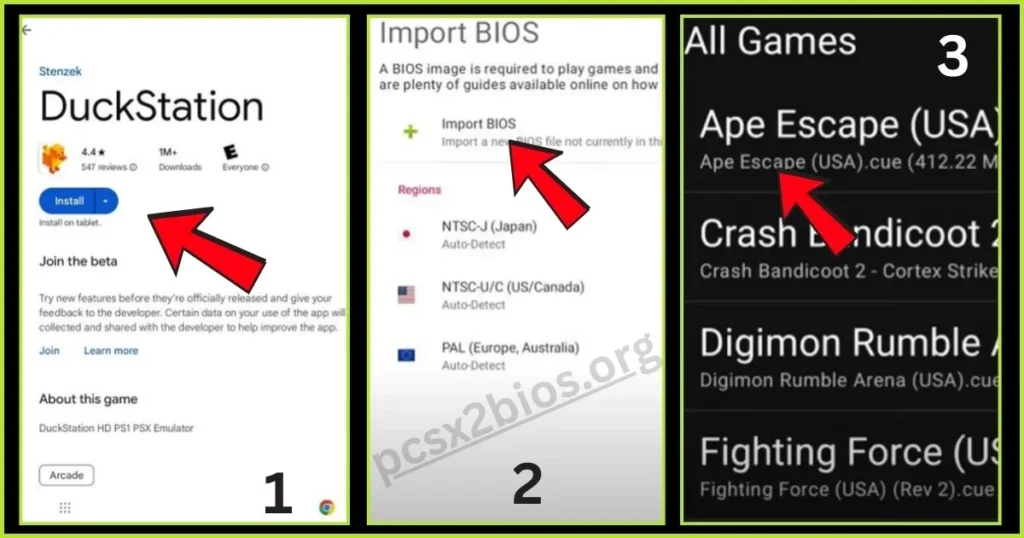
Installing Bios PS1 on DuckStation (Android)
- Download DuckStation from the Google Play Store and the All-In-One Pack.
- Extract the BIOS file to Internal Storage/Emulators/PS1/BIOS/ using ZArchiver.
- Open DuckStation, go to Settings > BIOS > Import BIOS, select the BIOS folder, and confirm.
- Load a game via the Plus (+) icon, select the ISO file, and verify the startup sequence.
Installing Bios PS1 on DuckStation (PC)
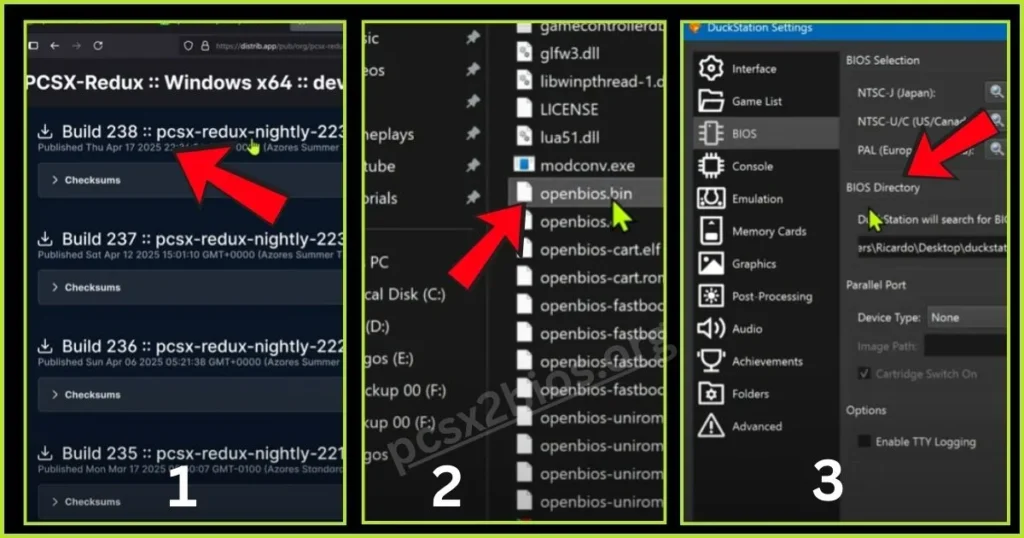
- Download DuckStation from its official website and install it.
- Save the BIOS file to C:\Emulators\BIOS\PS1.
- Open DuckStation, go to Settings > BIOS, select the BIOS folder, and let it detect the .bin file.
- Load a PS1 game via File > Open Disc Image and confirm it runs with the PlayStation logo.
PS1 BIOS vs. HLE (High-Level Emulation)
HLE means High-Level Emulation. It copies the BIOS actions with code in the emulator, without a real BIOS file. This way works on many setups but can miss some details from the original console. Below is a table to compare the two:
| Feature | PS1 BIOS (Real BIOS File) | HLE (High-Level Emulation) |
| Setup | Needs a BIOS file from your console | No file needed, built into the emulator |
| Game Compatibility | Runs most games well | Some games crash or do not start |
| Stability | Steady and close to real PS1 | May have glitches or save problems |
| Performance | Accurate but can be slower on old PCs | Often faster, good for weak hardware |
| Disc Swapping | Works like on the console | Not always smooth |
| Boot Animation | Shows the PS1 start screen | No start screen |
| Save File Support | Full memory card use | Can be buggy with saves |
| Region Support | Pick BIOS for game region | No regions, but locked games may fail |
| Authenticity | True to original hardware | Less real, like a copy |
Common PS1 BIOS Errors and Fixes
If your PS1 emulator has problems, these fixes can help get your games running smoothly.
No BIOS Loaded in the Emulator
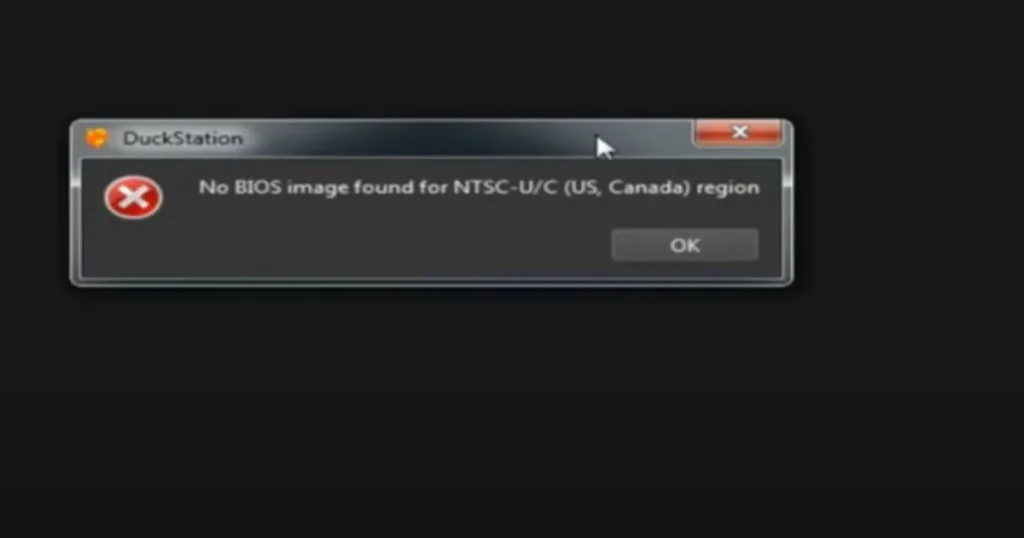
Issue: The emulator does not find the BIOS file.
Fix: Check that the BIOS file, like SCPH1001.BIN, is in the right folder. Set the emulator to point to that folder in its settings.
Game Crashes After BIOS Screen
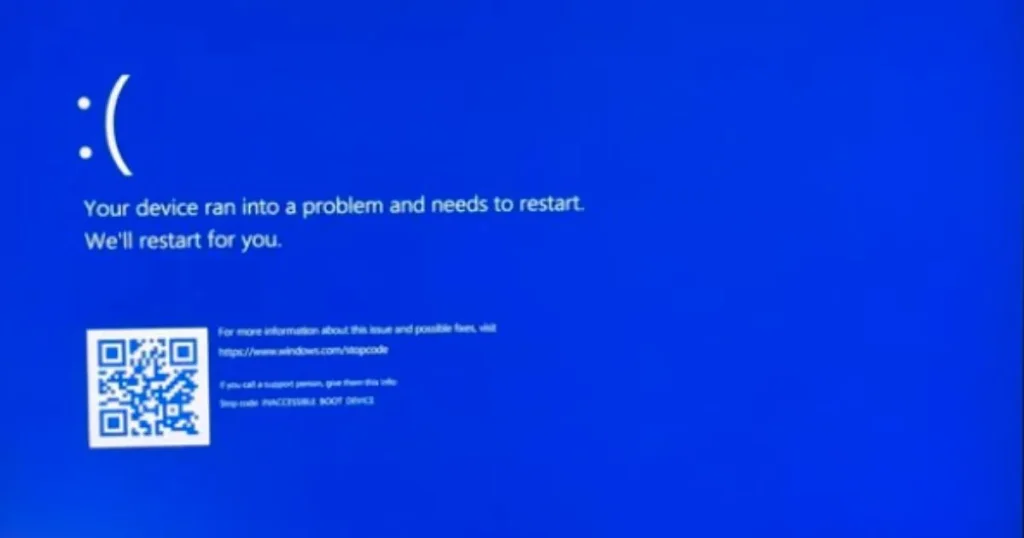
Issue: The game starts but stops after the BIOS intro.
Fix: Get a new BIOS file from your own console or a trusted source. Make sure the game ROM matches the emulator and BIOS region, like NTSC or PAL.
Lagging or Slow Game Performance
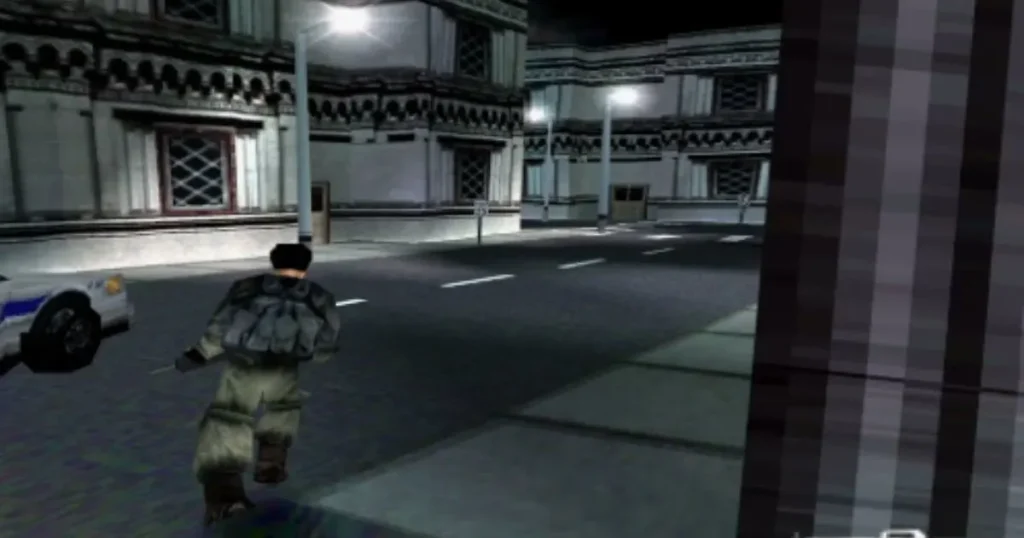
Issue: Games run slow or choppy.
Fix: Change the emulator’s video, audio, or CPU settings. Lower the resolution or turn on frame skip. Use the correct BIOS for your game’s region.
Incorrect Region Error
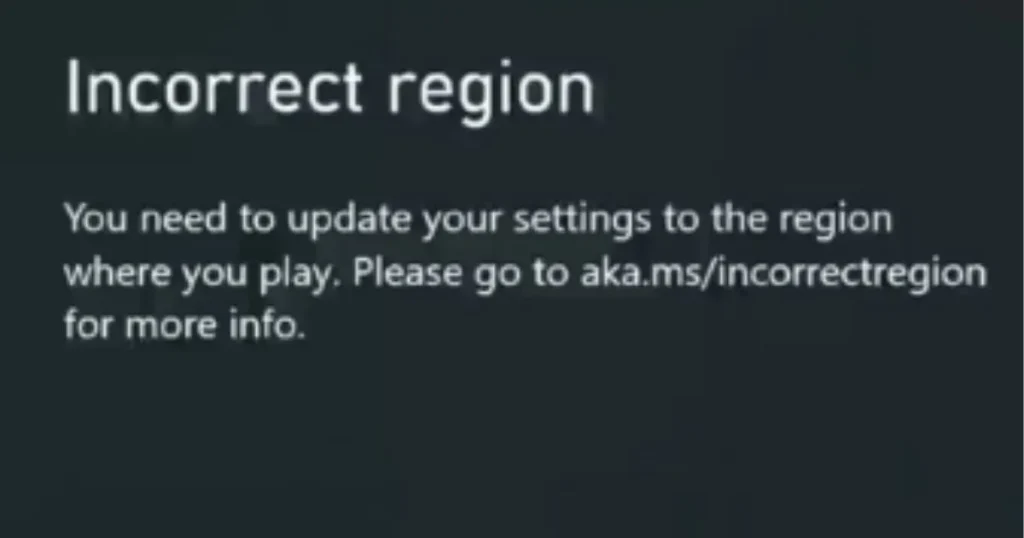
Issue: The game won’t start due to a regional mismatch.
Fix: Match the BIOS to your game’s region: SCPH1001.BIN for USA (NTSC-U), SCPH7502.BIN for Europe (PAL).
Corrupted Save Files
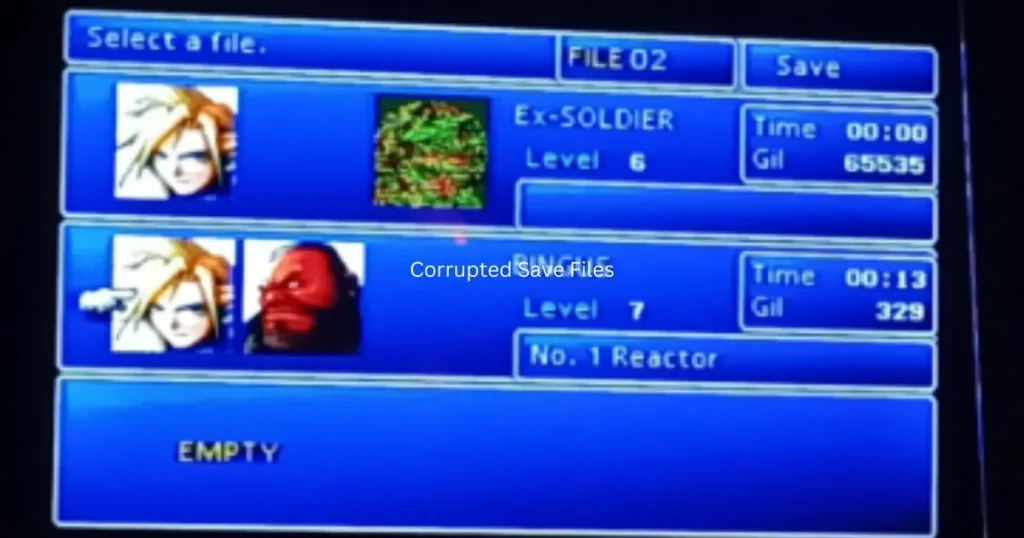
Issue: Saves don’t work or get corrupted.
Fix: Delete old saves and make new memory cards in the emulator. Use a proper BIOS to handle saves correctly.
Game Freezes or Stutters in Cutscenes
Issue: Games freeze or glitch in cutscenes.
Fix: Check the game ROM for errors. Use a recommended BIOS and update the emulator or graphics plugins for better play.
Disc Image Not Detected
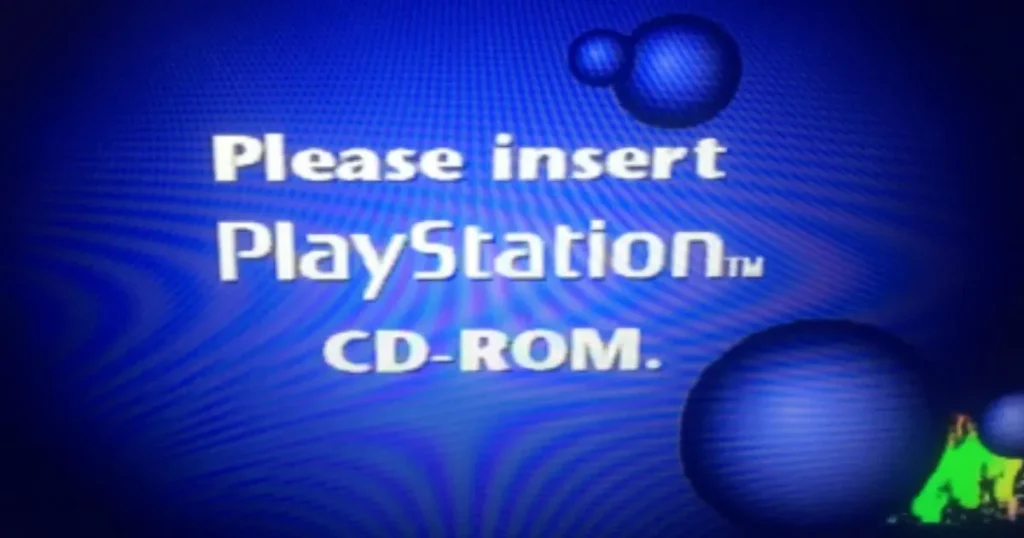
Issue: The emulator can’t find the game’s disc image (ISO/BIN/CUE).
Fix: Make sure game files are in the right format and not broken. Check CUE files for BIN games.
Screen Tearing or Graphic Glitches

Issue: You see tearing, pixel issues, or missing textures.
Fix: Update graphics settings in the emulator. Turn on V-Sync and try different rendering modes.
High CPU Usage or Overheating
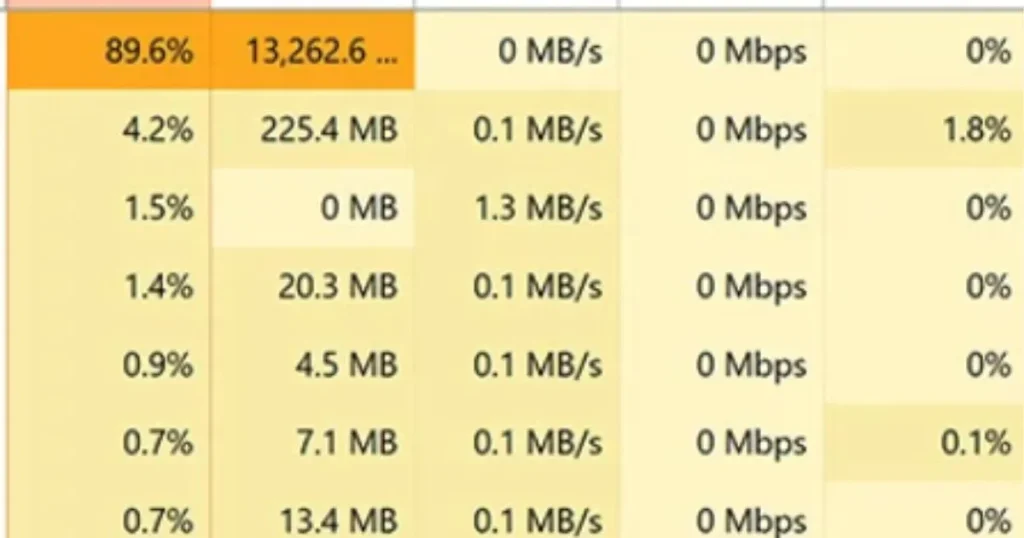
Issue: The emulator makes your PC or phone too hot or slow.
Fix: Lower the resolution or turn off heavy features like texture filters or shaders.
Audio Desync or Lag
Issue: Sound is off or delayed in games.
Fix: Adjust audio latency in the emulator settings. Use a BIOS that matches your game’s region and ROM type.