
Download PS2 BIOS Files For PCSX2 & AetherSX2 Emulators
(Official Latest Version)
Get the PS2 BIOS files you need for PCSX2 or AetherSX2 emulators. Play your favorite PlayStation 2 games on your PC, computer, or phone easily. These files work for all regions, are safe to use, and make gaming simple without tricky setups.

Nothing’s worse than launching PCSX2 or AetherSX2 to play Metal Gear Solid 2 and seeing “no BIOS file found.” This common issue stops PS2 games from running on emulators. The PS2 BIOS is what allows the emulator to actually start a game. Without it, nothing boots.
If your game won’t start or keeps crashing, it’s usually a BIOS issue. Using a clean and correct BIOS file solves these problems. Simple setup guides make it easy to get started on PC or mobile. Keep reading to learn how to set up your emulator and enjoy PS2 classics without hassle.
| File Name | PS2Bios |
|---|---|
| File Size | 12MB |
| Supported OS | Windows, macOS, Android, iOS |
| Emulators | PCSX2, AetherSX2, PS2emu |
| Format | .bin |
| Region | NTSC / PAL |
| Last Update | Jan 4, 2026 |
What is the PS2 BIOS?
The PS2 BIOS is the system file your emulator needs to start games. It basically tells the emulator how a real PS2 should behave when you turn it on. Without the system software, emulators can’t boot games, leaving you stuck with errors.
Different BIOS versions exist for regions like the USA (NTSC-U) or Europe (PAL), impacting game compatibility. The BIOS also manages disc drives and controllers, ensuring games run consistently. For emulation, you need a correct and working BIOS file to avoid setup issues.
What Does the PS2 BIOS Actually Do?
For emulation, the BIOS mainly handles:
- Starting the system
- Checking memory cards and controllers
- Loading game discs or ISO files
- Managing system settings
- Handling region verification
For emulator users, the important part is simple:
Without a proper BIOS file, the emulator cannot boot games. You don’t need to worry about every technical detail, just make sure the BIOS is correctly placed and matches your game region.
Types of PS2 BIOS Versions
Emulator firmware versions differ by region and console model, affecting how emulators like PCSX2 and AetherSX2 run games. Each version aligns with a specific region, USA (NTSC-U), Japan (NTSC-J), Europe (PAL), or China (NTSC-C), to ensure game compatibility. Picking the wrong BIOS can cause errors or prevent games from loading. Below are the main regional BIOS versions with their key details.

SCPH-30000 (USA, NTSC-U)
Matches North American games, supports models like SCPH-39001, and offers smooth DVD playback.

SCPH-10000 (Japan, NTSC-J)
Built for Japanese consoles and games, often needs a memory card for early DVD playback.

SCPH-50000 (Europe, PAL)
Works with European and Australian games, supports 50Hz PAL format and progressive scan.

SCPH-70000 (China, NTSC-C)
Designed for Chinese Slimline consoles, required for region-specific games, and less common.
Download PS2 BIOS Files for All Regions – USA, PAL, NTSC, NTSC-J
Using the wrong region BIOS is one of the main reasons PS2 games boot to a black screen or crash, matching the BIOS region to your game. Each BIOS version matches a specific console model and region, like the USA, Europe, Japan, or China. To avoid game crashes or compatibility problems, ensure your BIOS region aligns with your game’s region. Below are the most-used BIOS options by region, plus a full pack if you want everything in one download.
SCPH-70012 (USA)
Ideal for North American NTSC games, this BIOS works well with most U.S. titles. It ensures smooth performance on emulators like PCSX2 for popular games. Use this BIOS for NTSC-U (USA) games.
SCPH-39004 (Europe)
Perfect for PAL games from Europe or Australia, this BIOS supports titles with 50Hz video standards. It’s a must for European gamers using emulators. Use this BIOS if you’re playing PAL (European) games.
SCPH-10000 (Japan)
Designed for Japan’s NTSC-J games, this BIOS is from the original PS2 model. It’s essential for playing Japan-exclusive titles.
Download it to enjoy unique games not available in
other regions.
SCPH-90006 (China)
Tailored for China-specific releases, this BIOS is less common but vital for certain region-locked games. Use this BIOS if you’re running Chinese-region PS2 games.
Ultimate PS2 BIOS Pack (Master File with All Versions)
Want all regions in one place? This pack includes every BIOS version for easy setup. It’s a convenient option for users with games
from multiple regions.
Note: All files are safe, virus-free, and tested for emulator compatibility.
Which PS2 File Should You Use?
Choosing the right BIOS version depends on the region of your game.
Here’s a simple way to decide:
|
Game Region Code |
Use This BIOS |
Common Region |
|---|---|---|
|
SLUS / SCUS |
NTSC-U |
USA |
|
SLES / SCES |
PAL |
Europe |
|
SLPS / SCPS |
NTSC-J |
Japan |
You can find your game’s region by checking the file name or disc serial code.
Simple Rule:
Match your BIOS region to your game region for best compatibility.
This avoids:
- Black screens
- Boot errors
- 50Hz/60Hz issues
Learn more about types of ps2 bios.
NTSC vs PAL BIOS: Which Should You Use?
NTSC and PAL BIOS versions for PS2 emulators like PCSX2 and AetherSX2 differ mainly in refresh rates and game compatibility. NTSC (USA, Japan) runs at 60Hz, NTSC runs at 60Hz, which usually feels faster than PAL’s 50Hz. PAL (Europe, Australia) uses 50Hz, which can feel slower and may show black borders on some games. Choose the BIOS matching your game’s region to avoid errors or lag.
PCSX2’s fast boot makes it region-free, letting you use any BIOS for most games without issues. However, some titles, like Final Fantasy X, need a full boot with the correct regional BIOS for proper performance. Most users choose NTSC-U if they mainly play North American games., but PAL BIOS suits European games with specific display needs. Always make sure your BIOS file matches your console and game region for best compatibility.
PlayStation 2 BIOS Features
The PS2 BIOS is the heart of the PlayStation 2, powering both the console and emulators like PCSX2 and AetherSX2. It handles critical tasks like starting hardware, loading games, and managing settings to ensure smooth performance. Without it, you’d face errors that stop games from running. Below are the main features that make the emulator firmware required for gaming.
Hardware Initialization
The BIOS starts the CPU, memory, graphics, and controllers when the PS2 powers on. It checks for hardware issues to ensure a smooth boot process. This prevents crashes during startup or emulation.
Region Lockout
The BIOS restricts games to regions like the USA (NTSC-U) or Europe (PAL) to ensure compatibility. A mismatched BIOS and game region causes errors or unplayable games. Emulator settings or mods can bypass this restriction.
Booting Game Discs
The BIOS verifies and loads game discs, starting the game’s code for quick gameplay. It ensures discs are recognized reliably on consoles or emulators. This feature is key to avoiding “no disc” errors.
System Configuration
The BIOS sets up screen resolution, language, and time for optimal console or emulator performance. Proper settings prevent display or language issues during gameplay. It’s crucial for tailoring the user experience.
Boot Menu
Some BIOS versions offer a menu to select startup options like memory card or disc booting. This helps troubleshoot issues or run homebrew applications. It’s especially useful for advanced emulator users.
User Interface & Navigation
The BIOS provides a menu to manage memory card data and adjust system settings without a disc. Users can check saved games or configure options easily. This simplifies system management for gamers.
DVD Playbook Support
Later BIOS versions enable DVD movie playback without extra software. This turns the PS2 into a multimedia device for movies and games. It’s a popular feature in newer console models.
Firmware Updates
The BIOS supports Sony’s updates to fix bugs, improve stability, or add new features. Updates are applied via official discs or emulator patches.
Download PS2 BIOS for PCSX2 & AetherSX2 Emulators
PCSX2 and AetherSX2 will not start games without a BIOS file. To avoid corrupted or unsafe files, make sure you’re using a clean and verified BIOS file that works with your emulator version. Downloading from random sites can expose you to malware or illegal files that crash your setup. Check below for safe options to get your BIOS.
- Legal Extraction from Your Console: Follow clear setup instructions to make sure your BIOS file is placed correctly and detected by your emulator. This ensures a safe, compatible file for emulators and avoids legal risks. It works with games from any region, like the USA or Europe.
- Avoid Unverified Downloads: Skip sites promising “virus-free” BIOS files, as they often carry hidden threats. These can harm your device or cause emulator errors. Stick to extracting your own file for peace of mind.
Why Download PCSX2 BIOS From Our Website?
If you’ve ever searched for a PS2 BIOS, you already know how confusing it can be.
- Too many sites
- Too many fake buttons
- Too many “Download Now” links that don’t actually download anything
We understand that frustration, because we’ve been there too. That’s exactly why we created this website.
Here’s what makes https://pcsx2bios.org/ different:
Clean and Carefully Checked Files
We test the files with current emulator versions before publishing them. No broken files. No corrupted data. No random modifications.
Safe Downloads — No Tricks
We don’t hide the real download button behind pop-ups or misleading ads. What you click is what you get. Simple and straightforward.
All Major Regions in One Place
Whether you need USA (NTSC-U), Japan (NTSC-J), Europe (PAL), or China (NTSC-C), everything is organized clearly so you don’t waste time searching on multiple websites.
Tested With Popular Emulators
Our files are checked to work smoothly with current emulator versions, so you don’t run into unnecessary setup errors.
Beginner-Friendly Help
Not everyone is a tech expert — and that’s okay. We provide easy-to-follow setup instructions so even first-time users can get their emulator running without stress.
No Annoying Spam Experience
We believe in keeping things clean. No aggressive pop-ups. No forced redirects. Just the files and guides you actually came for.
Our goal: We want you to get your emulator working without wasting hours searching.
Download PS2 BIOS for Windows, Android or iOS
To enjoy PS2 games on emulators like PCSX2 or AetherSX2, you need a BIOS file for Windows, Android, or iOS. Make sure the BIOS file you use is safe, complete, and compatible with your emulator version. Free download links online often lead to risky files that crash your setup. See below for your best options.
- Legal Extraction Guide: Follow step-by-step instructions to correctly configure your BIOS file on Windows or Android. This gives you a safe, compatible file for emulators. It works with games from any region, like the USA or Japan.
- Update Note: Recent updates include new extraction tools and guides for all platforms. Check trusted sites regularly to stay current. This helps you avoid outdated or unsafe files.
Using PS2 BIOS On Emulators for Mobile & PC
The PS2 BIOS is required for running PlayStation 2 games on emulators like PCSX2 for PC or AetherSX2 for Android, acting as the firmware that enables gameplay. You must ensure the emulator supports the BIOS and is compatible with your platform, such as Windows, macOS, or Android, and always use a legally sourced BIOS file to avoid issues.
PS2 BIOS File on Android
To enjoy PlayStation 2 games on your Android device, you need a compatible emulator along with a legally obtained BIOS file to enable smooth gameplay. Popular Android emulators like AetherSX2 and DamonPS2 fully support these BIOS files, ensuring a seamless gaming experience.
AetherSX2
AetherSX2 is one of the most popular PS2 emulators for Android., rivaling PC emulators like PCSX2 with its ability to run nearly all PS2 games smoothly on smartphones and tablets.
It supports touchscreen controls, wireless gamepads, and features like save states and cheat codes, making it a top pick for mobile gamers. Best of all, it’s completely free with no hidden costs, offering an accessible and feature-rich experience.
Key Features of AetherSX2:
Free to Use: Fully free to download and use, with no premium features or hidden fees.
PS PS2 PSP
The PS PS2 PSP Emulator is a versatile tool that supports PS1, PS2, and PSP games, allowing you to play a wide range of PlayStation titles with a single emulator. It works with any PS2 BIOS file and performs well on low-end Android devices, delivering smooth gameplay even on 4GB RAM hardware. While it may struggle with high-end PS2 games, it remains a solid choice for multi-console emulation.
Key Features of PS PS2 PSP Emulator:

DamonPS2
DamonPS2 is a powerful Android PS2 emulator capable of running demanding titles like God of War, GTA San Andreas, and Shadow of the Colossus with ease. It supports nearly all PlayStation 2 games and works with any bios pcsx2 file, requiring a high-performance Android device for optimal results. Its straightforward setup makes it beginner-friendly, though it comes with a cost as it’s not free.
Key Features of DamonPS2:
High Performance: Delivers smooth gameplay for high-end PS2 games on capable devices.
Check out the best ps2 emulators for Android: https://pcsx2bios.org/best-ps2-emulators-for-android/
PS2 BIOS File on Windows & Mac
Similar to Android, you can use console firmware with emulators on Windows and macOS to play PlayStation 2 games. Below are the top emulators that support PS2 system files for a seamless gaming experience:
- PCSX2: A leading emulator for Windows and macOS, PCSX2 delivers high-quality performance and supports nearly all PS2 games with any biosps2 file, ensuring smooth gameplay.
- PS2emu: Exclusive to Windows, PS2emu is a solid choice that works with various PS2 BIOS versions but supports a limited game library and is not available on macOS.
- NeutrinoSX2: Less powerful than PCSX2 or PS2emu, NeutrinoSX2 offers basic emulation with limited BIOS compatibility and struggles with demanding PS2 titles.
What is PCSX2?
PCSX2 is a free, open-source PlayStation 2 emulator that lets you play PS2 games on Windows, macOS, Linux, and now Android. It replicates the PS2’s hardware, supporting a vast game library with features like enhanced graphics, save states, and controller support. Since its launch in 2002, it has been a leading choice for PS2 emulation.
Ongoing updates keep PCSX2 compatible with nearly all PlayStation 2 titles for a smooth experience. It requires a valid PS2 BIOS file to function properly. The emulator’s flexibility and performance make it ideal for enjoying classic PS2 games.
Key Features of PCSX2:
How to Install and Set Up PCSX2 on PC (Windows)
Download PCSX2 from the official website pcsx2bios to ensure a safe, up-to-date version for Windows (32/64-bit). You’ll need a PC with Windows 10/11 (64-bit), an Intel Core i3 or AMD Ryzen 3 or better, a GPU with OpenGL 4.5 or Vulkan support, and at least 4GB RAM (8GB recommended). Follow the steps below to install and configure PCSX2 for smooth PS2 gaming.
System Requirements
Step-by-Step Installation
Step 1: Download PCSX2
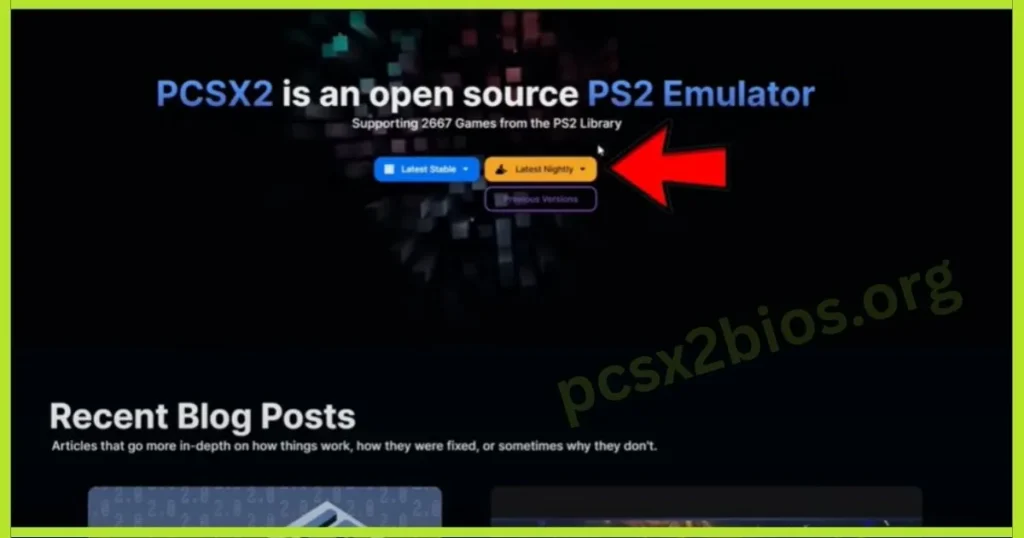
- Go to https://pcsx2.net/downloads.
- Choose “Windows” and pick “Latest Stable” or “Latest Nightly.”
- Tip: Save ZIP to Downloads, extract to a folder like Desktop > PCSX2.
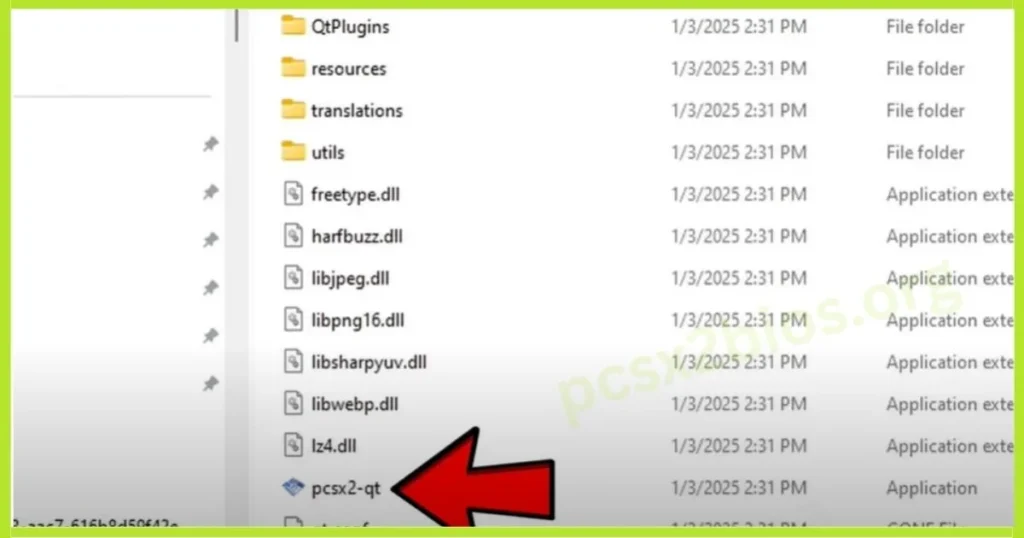
Step 2: Extract and Start PCSX2
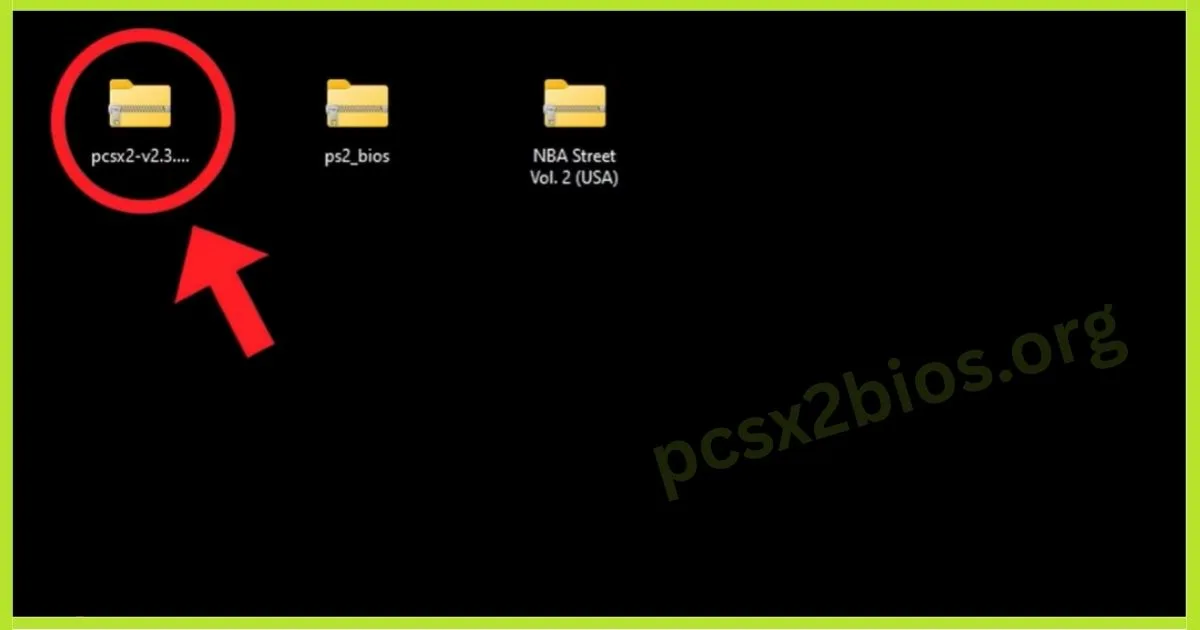
- Unzip the file with WinRAR or a built-in tool.
- Open folder, double-click “pcsx2-qt.exe” to run.
- Tip: No install needed; keep files together.
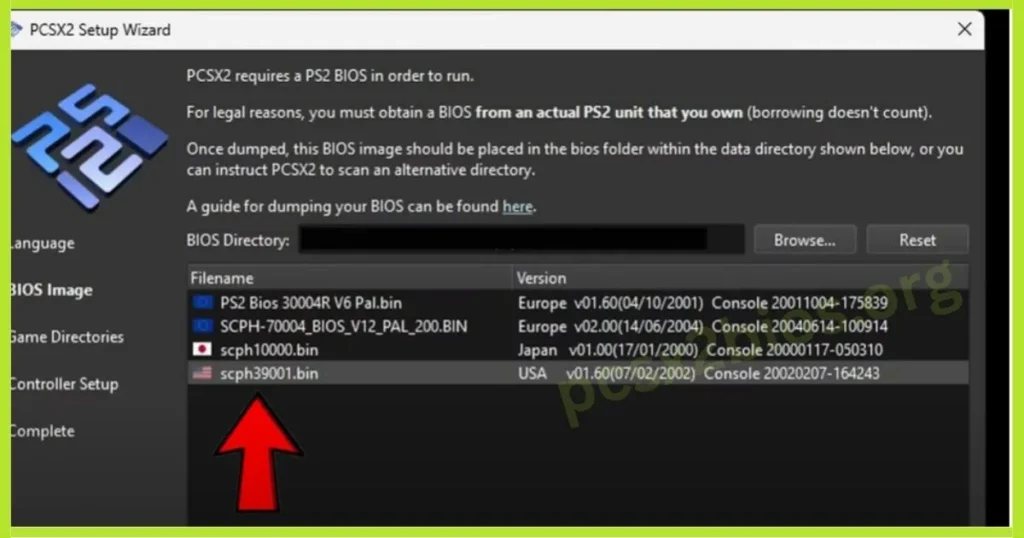
Step 3: Get PS2 BIOS
- Dump BIOS from your PS2 (search “dump PS2 BIOS” for help).
- Place file (e.g., scph39001.bin for USA) in Documents > PCSX2 > bios.
- Tip: Match region (USA, Europe) to your games.
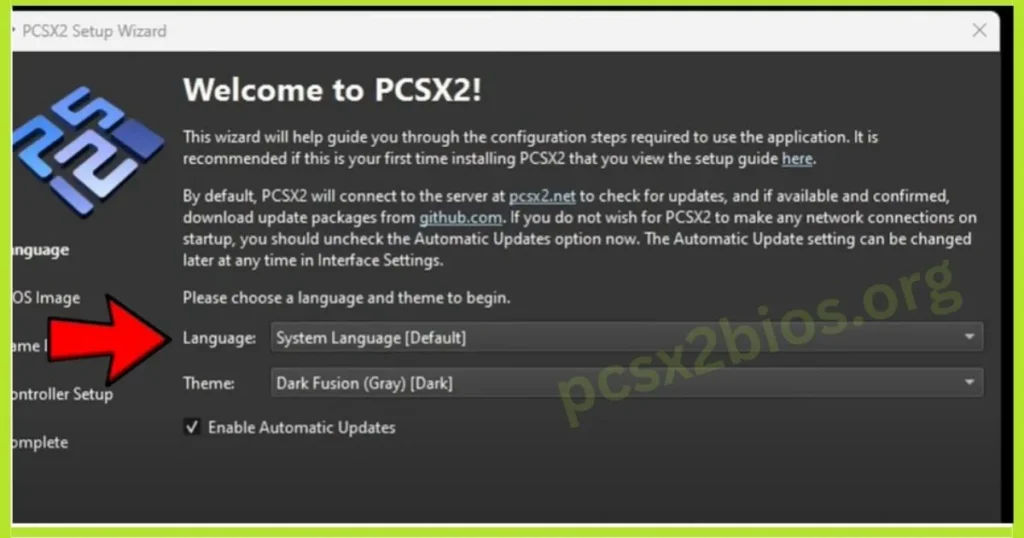
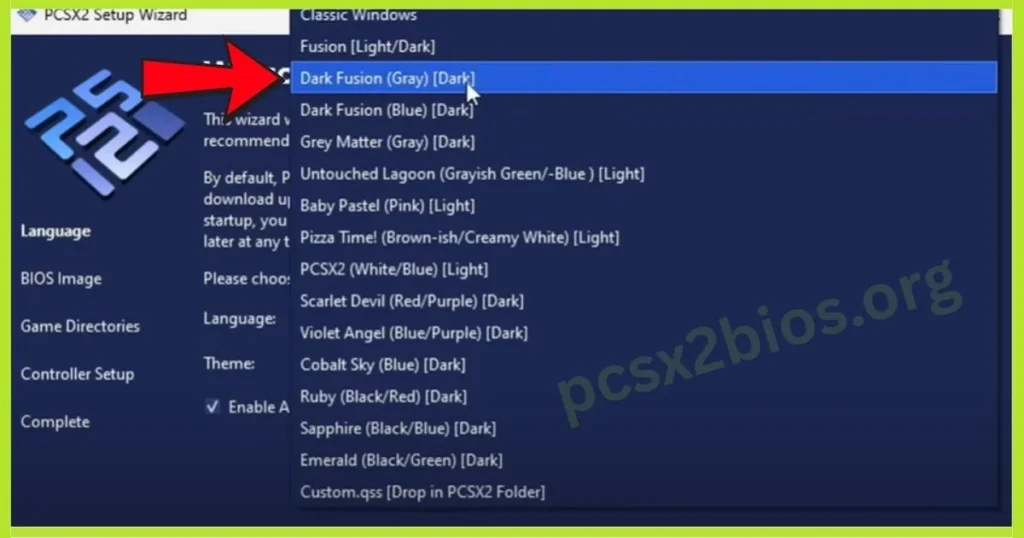
Step 4: Run Setup Wizard
- Start PCSX2; wizard opens.
- Pick language (default: System) and theme (e.g., Dark Fusion).
- Select BIOS: Browse to bios folder, choose file.
- Tip: Use defaults, adjust later in Settings.
Step 5: Set Game Directory
- In the wizard, browse to the folder with .iso files (e.g., PS2 Games).
- Tip: Add all game folders here for easy access.
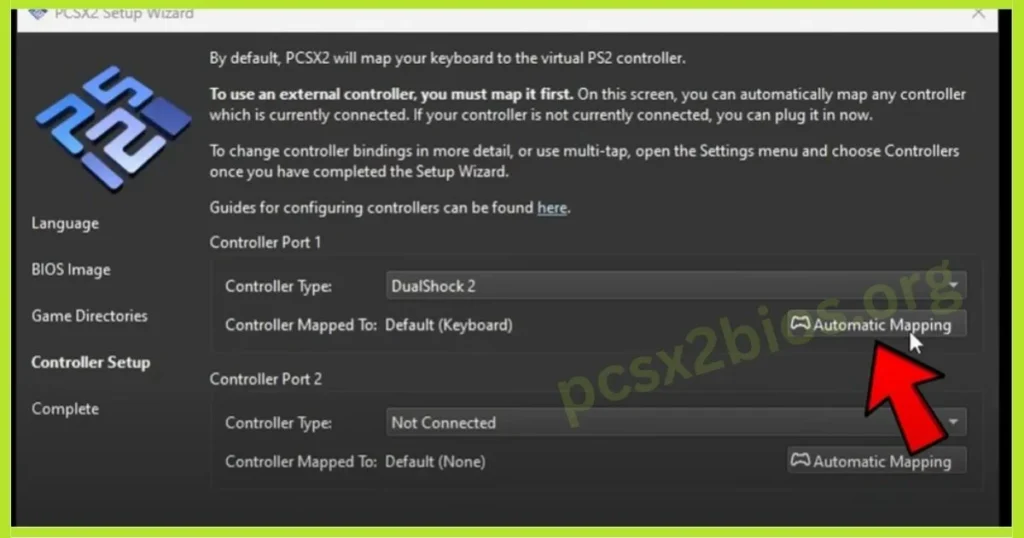
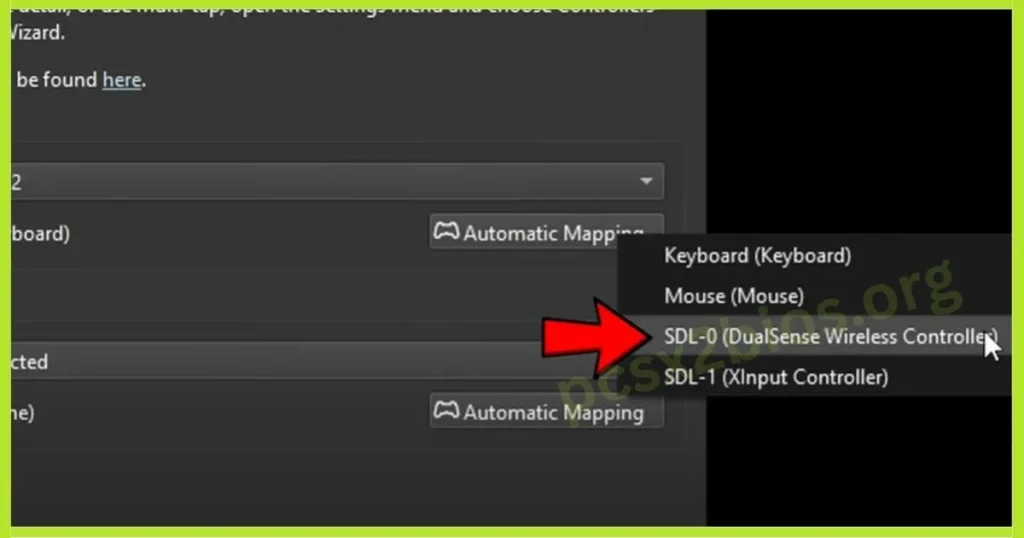
Step 6: Configure Controllers
- In the wizard, pick the keyboard or plug in the gamepad.
- Use “Automatic Mapping” (e.g., DualSense).
- Tip: Test buttons; fix in Settings > Controllers if needed.
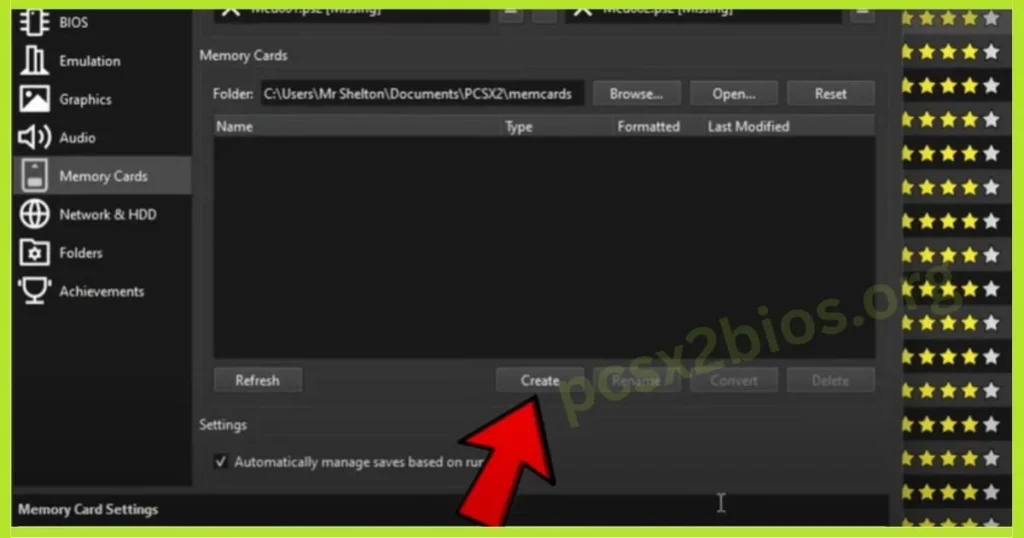
Step 7: Set Up Memory Cards
- Go to Settings > Memory Cards.
- Click “Create,” name it (e.g., Mcd001.ps2), use 8MB.
- Assign to Slot 1 or 2, check “Automatically manage saves.”
- Tip: Saves your game progress.
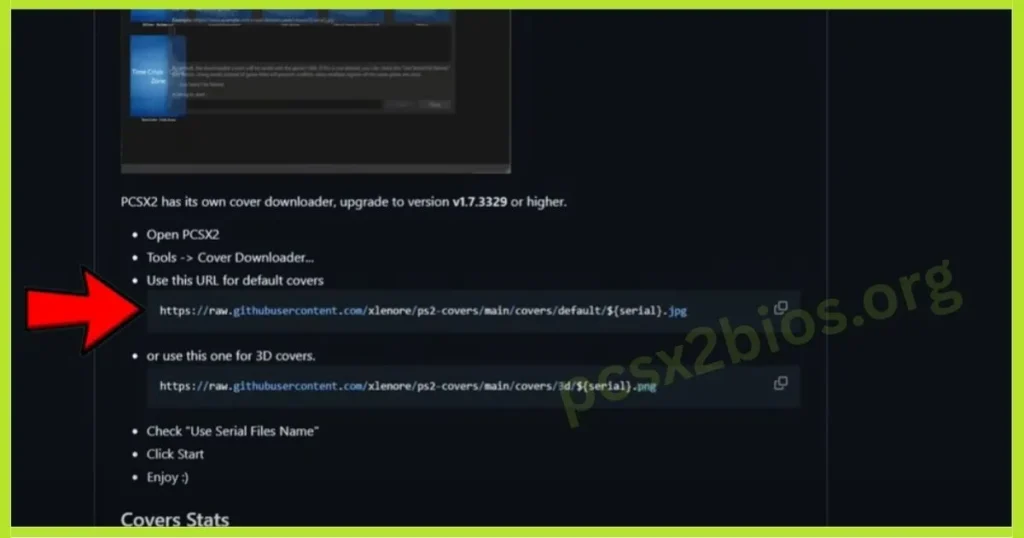
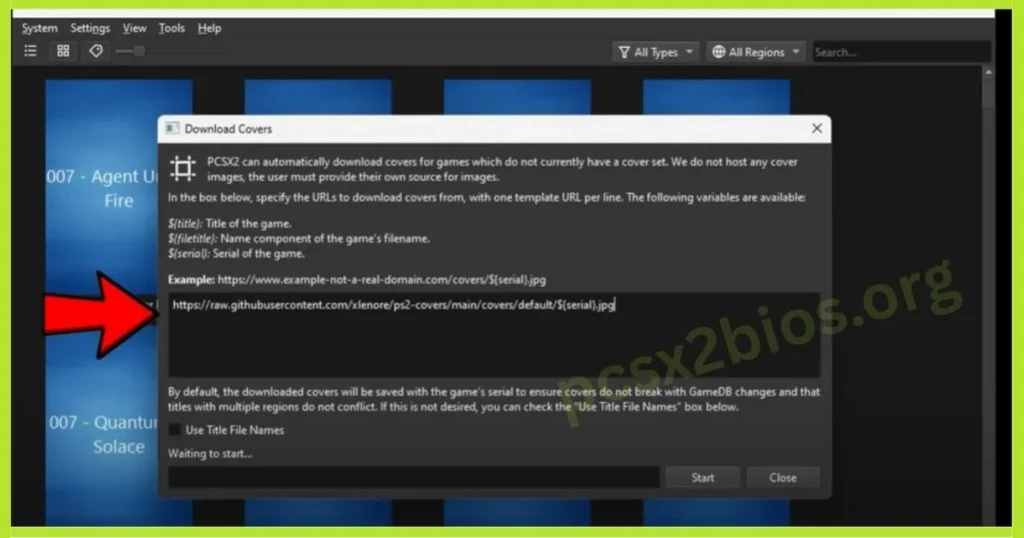
Step 8: Add Game Covers
- Go to View > Download Covers.
- Use URL: https://raw.githubusercontent.com/xlenore/ps2-covers/main/covers/default/{Serial}.jpg.
- Click “Start” to download box art.
- Tip: Make game lists pretty; try 3D URLs for fancy ones.
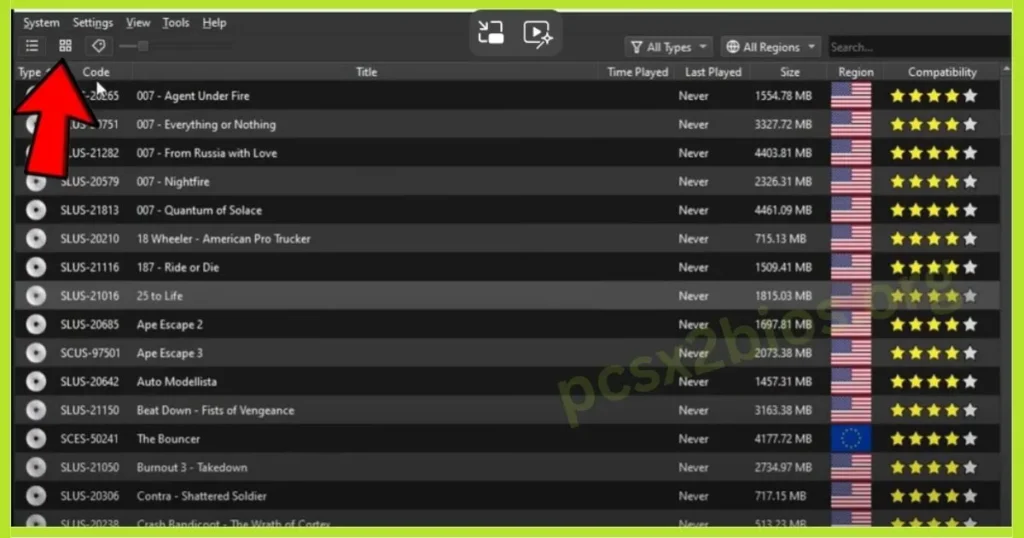
Step 9: View Game List
- Click “Game List” on the left.
- See codes, titles, regions, and star ratings (5 stars = best).
- Tip: Sort or search; low stars need wiki fixes.
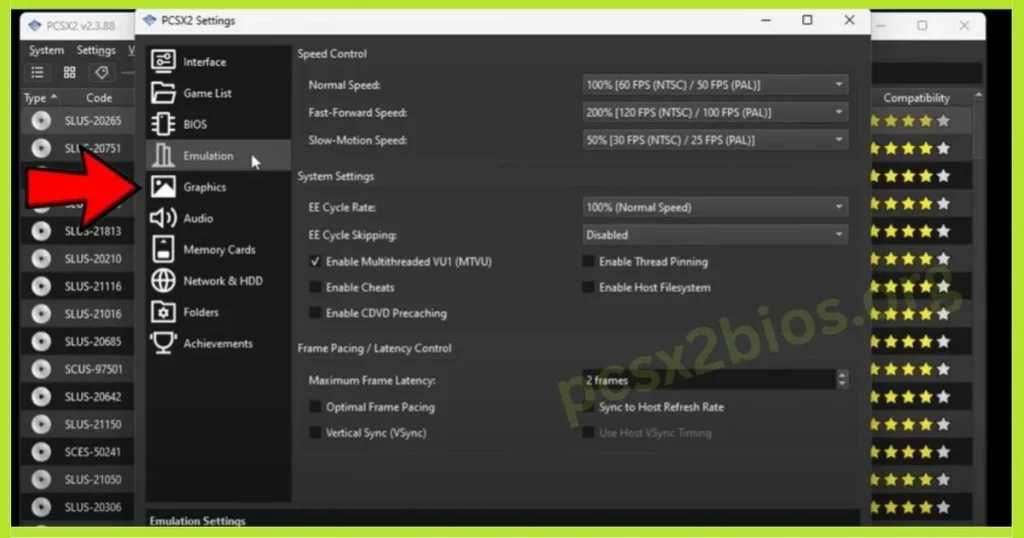
Step 10: Tweak Emulation Settings
- Go to Settings > Emulation.
- Set “EE Cycle Rate” to 100% and “EE Cycle Skipping” to Disabled.
- Check “Enable Multithreaded VU1” for better speed.
- Tip: Defaults work; change if games lag.
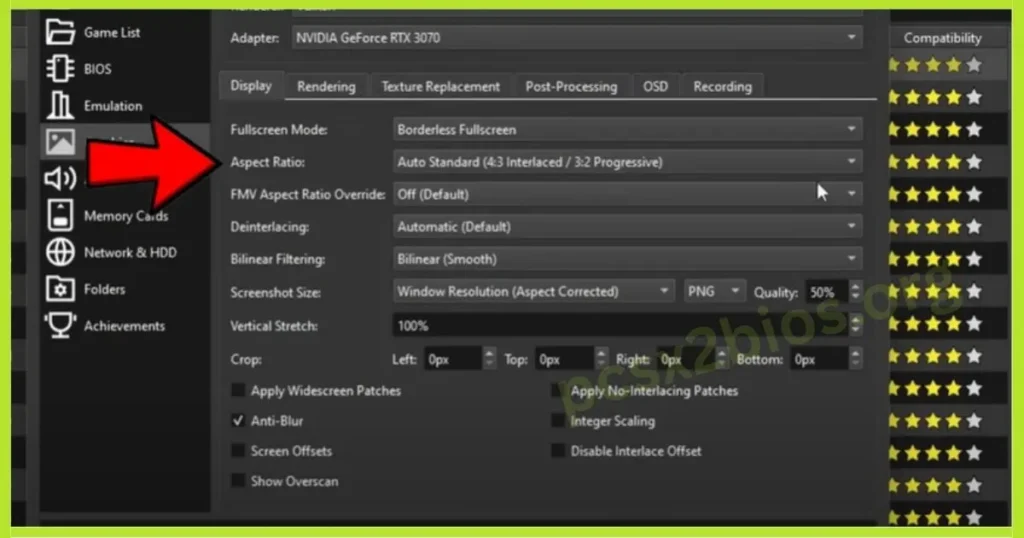
Step 11: Adjust Graphics Settings
- Go to Settings > Graphics.
- Pick “Vulkan” renderer (or Direct3D).
- Set “Aspect Ratio” to Auto Standard (4:3).
- Enable “Widescreen Patches” if needed.
- Tip: Test game; lower settings if slow.
Step 12: Configure Speed and Latency
- In Emulation, set “Frame Pacing” to Optimal.
- Adjust “Maximum Frame Latency” to 2 frames.
- Tip: Fix choppy play; tweak if audio lags.
Step 13: Load and Test a Game
- Go to CDVD > ISO Selector > Browse, pick an .iso.
- Click System > Boot ISO (Fast).
- Tip: Match BIOS/game region; Esc to pause.
Step 14: Save and Check Progress
- In-game, use save states (F1-F3) or memory card.
- Check saves in Settings > Memory Cards.
- Tip: Back up saves to avoid losing progress.
Additional Tips
- Update graphics drivers for optimal performance.
- Adjust graphics settings (OpenGL or Vulkan) in Settings > Graphics for better visuals.
- Check the PCSX2 compatibility list for game-specific tweaks.
How to Install and Use PCSX2 on Android
PCSX2’s Android beta, available via Google Play Store or GitHub nightly builds, lets you play PS2 games on modern devices. You’ll need Android 8.0+, an ARM64 device, 4GB RAM (8GB recommended), and Vulkan/OpenGL ES 3.2 support for smooth performance.
Requirements
Installation Steps
- Download PCSX2: Get the beta from Google Play Store or a nightly build from GitHub.
- Install PCSX2: Open the APK, enable “Unknown Sources” in Settings > Privacy & Security, and install.
- Add PS2 BIOS: Transfer a legally obtained system BIOS file to your device and select it in PCSX2’s settings to enable proper emulation.
- Add Games: Place PS2 ISO files in a folder (e.g., Internal Storage/PS2/Games) and add the directory via the app’s “+” icon.
- Configure Controls: Set up on-screen controls or pair a Bluetooth controller in the settings menu.
- Run Game: Select a game from the PCSX2 main menu and tap to launch.
Tips for Best Performance
- Use Vulkan renderer for better speed on most Android devices.
- Match BIOS and game regions to avoid compatibility issues.
- Disable heavy enhancements on low-end devices to prevent slowdowns.
Fix “No BIOS Found” Error in 60 Seconds
If PCSX2 or AetherSX2 says “No BIOS found”, try this:
- Make sure your BIOS file is unzipped (.bin file, not .zip).
- Place it inside:
Documents > PCSX2 > bios - Restart the emulator.
- Go to Settings > BIOS and select the file manually.
- If it still doesn’t appear, double-check the file name and folder path.
Most BIOS errors are caused by wrong folder placement or zipped files.
Common BIOS Setup Mistakes (And How to Fix Them)
Here are the most common problems users face:
BIOS file is still zipped
→ Extract it before placing it in the BIOS folder.
Wrong folder location
→ Make sure it’s inside Documents > PCSX2 > bios.
File not showing in emulator
→ Restart PCSX2 after adding the BIOS.
Black screen when booting game
→ Try Full Boot instead of Fast Boot.
Game running slow
→ Lower graphics settings or switch renderer (Vulkan/Direct3D).
Fixing these small issues solves most setup problems.
Conclusion
The PS2 BIOS file is required to run PlayStation 2 games on mobile and PC emulators. Once it’s set up correctly, your games will start normally. This guide should help you understand its role and how to set it up correctly. For any issues or questions, check emulator documentation or community forums for quick solutions.